Pose6D — Getting Started
Main steps for 3D pose estimation, from installation to a working robot.
Overview
This page outlines the main steps to perform 6DOF pose estimation with Pose6D. It is the short version of the manual — every parameter here matches the full document.
The latest revision of the complete manual can be requested from RobotAI at any time. Everything you need to start is on this page: no external documents required.
Main steps for a single-object pose estimation
Eleven steps. Click a step to jump to its instructions.
- 01
Get the software
Download the free POC version (CPU only) together with its documentation.
- 02
Hardware requirements & installation
Prepare the PC, install Pose6D and verify it on the supplied USB test data.
- 03
Define your setup
Camera, working distance and object size in the image.
- 04
Collect image data
Record the object from different positions according to your setup.
- 05
Camera calibration
Run the calibration procedure with the printed checkerboard pattern.
- 06
Provide object dimensions
Measure the part and supply its size information.
- 07
Upload the object data
Send images, calibration and size data to RobotAI.
- 08
RobotAI builds the model
We train the model for your part and share it back with you.
- 09
Test detection
Verify results with the same steps used for the USB model.
- 10
Hand-eye calibration
Transform the result into your robot coordinate frame.
- 11
Robot communication
Connect the output to your controller — the interface is flexible.
Instructions
Requirements
- Operating system
- Windows 10/11
- POC build is Windows-only
- Memory
- 8 GB minimum
- More memory speeds up loading
- GPU
- Not required
- CPU build runs slower than the GPU version
- CUDA
- Occasionally required
- See the troubleshooting page of the manual
- Camera drivers
- USB built into Windows 10/11
- Other cameras need customization — contact RobotAI
In your setup and camera selection, the object must cover at least 250 × 250 pixels in the image to receive accurate results.
Software installation
- 01
Download the installer
Save Pose6D-XXXX-cpu.exe into a folder on your computer. XXXX stands for the version number.
Pose6D-XXXX-cpu.exe · Link on request - 02
Create a parts directory
This folder will hold every object you work with.
- 03
Download the test data
Get usb_test.zip — the reference object used to verify the installation.
Download usb_test.zip - 04
Unzip into the parts directory
You should end up with a usb_test folder containing the structure below.
C:\RobotAI\Parts\usb_test
- ├──camerasCamera interfaces and parameters
- ├──labelsLabeled data used for model training
- ├──modelsRun-time models
- ├──robotsRobot interfaces and parameters
- └──videosData collected for training
Section 02 · Part 2 of 2
Software verification
Two checks: first on the recorded data we ship, then on your own camera.
This confirms the installation itself. Nothing but the shipped files is used.
- 01
Run the software by double-clicking the executable. Loading takes a while on CPU.
ui-main-windowfigure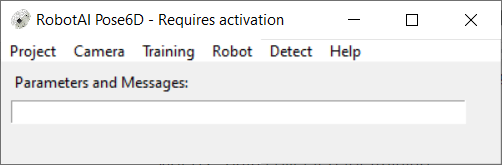
- 02ProjectSelect Object Directory
Choose the working project directory and select usb_test.
ui-select-folderfigure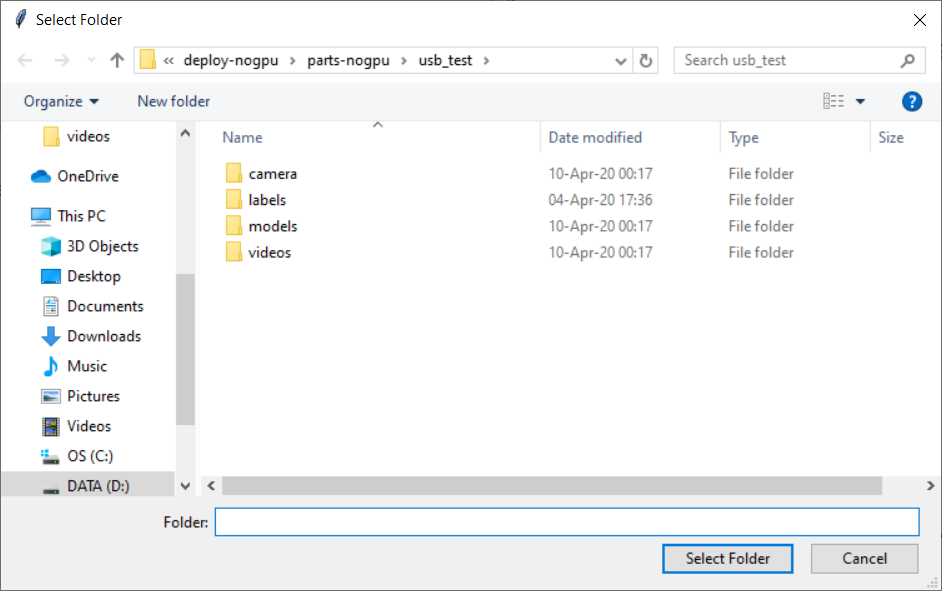
- 03ProjectCheck Config File
The window stays white and reports “Config is OK”.
ui-config-okfigure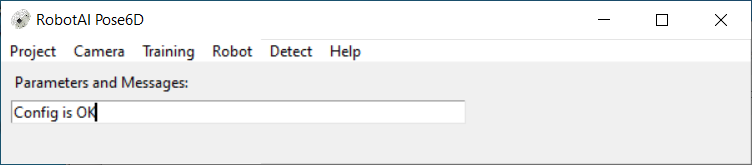
- 04DetectRun Video from File
Pick the mp4 file in the usb_test video directory. A window with the USB movie opens.
ui-video-file-dialogfigure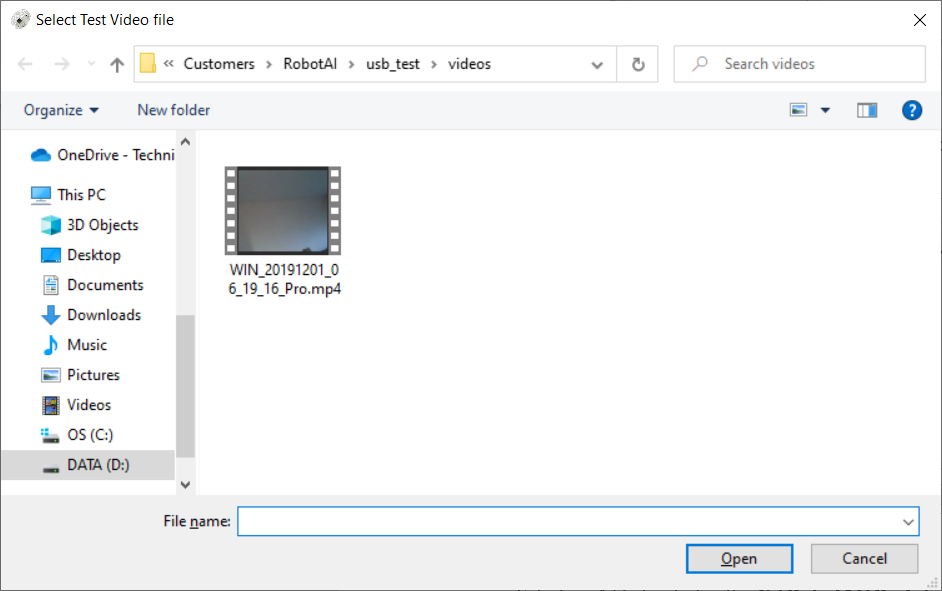
- 05
Press q to stop. If the video runs fast, the installation is successful.
ui-live-usbfigure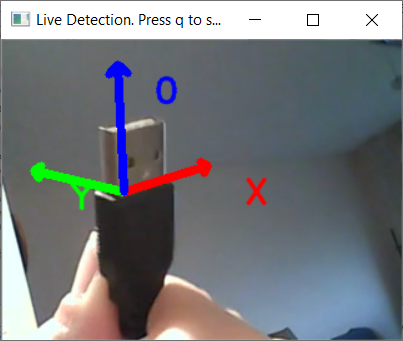
Stuck somewhere?
Send us the step number and a screenshot — we answer with the exact setting to change.